|
Lead Time Filter Properties Panel |
Scroll Previous Topic Top Next Topic More |
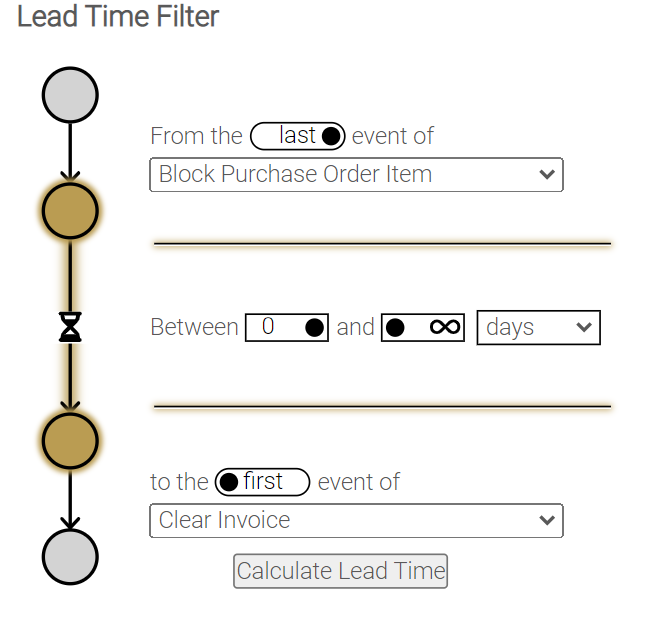
The Lead Time Filter helps you define a subprocess to see its lead time.
DIMENSIons |
|
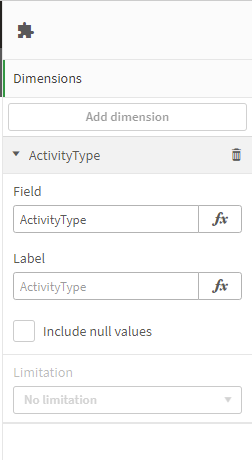
•As first dimension set the process steps. Therefore, use the fields ActivityType or the ActiivityType_$(mvSelectedLanguage) to switch between languages |
 |
Data |
|
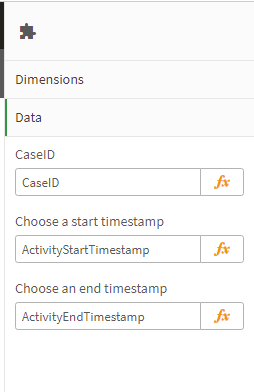
•Set the field on which to filter, normally this will be the CaseID •Set the fields between which the interval will be calculated, normally this will be the ActivityStart- and -EndTimestamp |
 |
Variables |
|
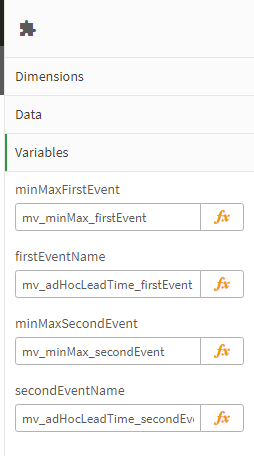
•Here the variables are set in which the ad hoc lead time configuration is written to be able to calculate different measures in mpmX •minMaxFirstEvent: set a variable to store the information if the first occurrence or the last occurrence of the first dimension value (normally a activity) should be taken into account •firstEventName: set a variable where the first dimension value is stored (normally a activity) •minMaxSecondEvent: first set a variable to store the information if the first occurrence or the last occurrence of the second dimension value (normally a activity) should be taken into account •secondEventName: set a variable where the second dimension value is stored (normally a activity) |
 |
Appearance - General |
|
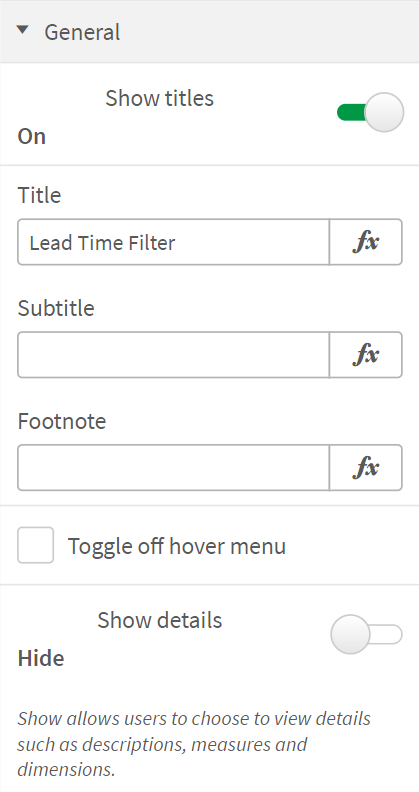
•"Show titles": Switch the button to "on" in order to display the title •"Title": Set the title of the Lead Time Filter •"Subtitle": Set a subtitle for the Lead Time Filter •"Footnote": Set a Footnote for the Lead Time Filter •"Toggle off hover menu": Check this checkbox if you want don't want the "more" and "full screen" icons to appear when hovering over the extension •"Show details": Switch button to "on" in order to display detailed information such as measures and dimensions
|
|
APPeaRance - alternate states and colors |
|
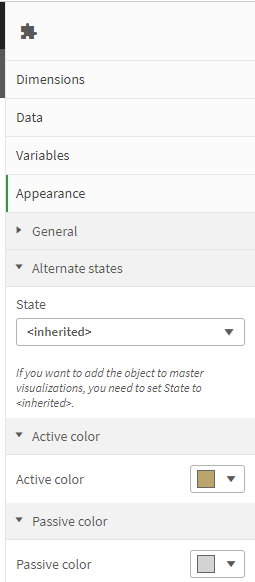
•Alternate States: "State": Set the state to "inherited" if you want to add the object to master visualizations •Active Color: Choose the node color for events in the time calculations •Passive Color: Choose the node color for events outside the time calculation |
|